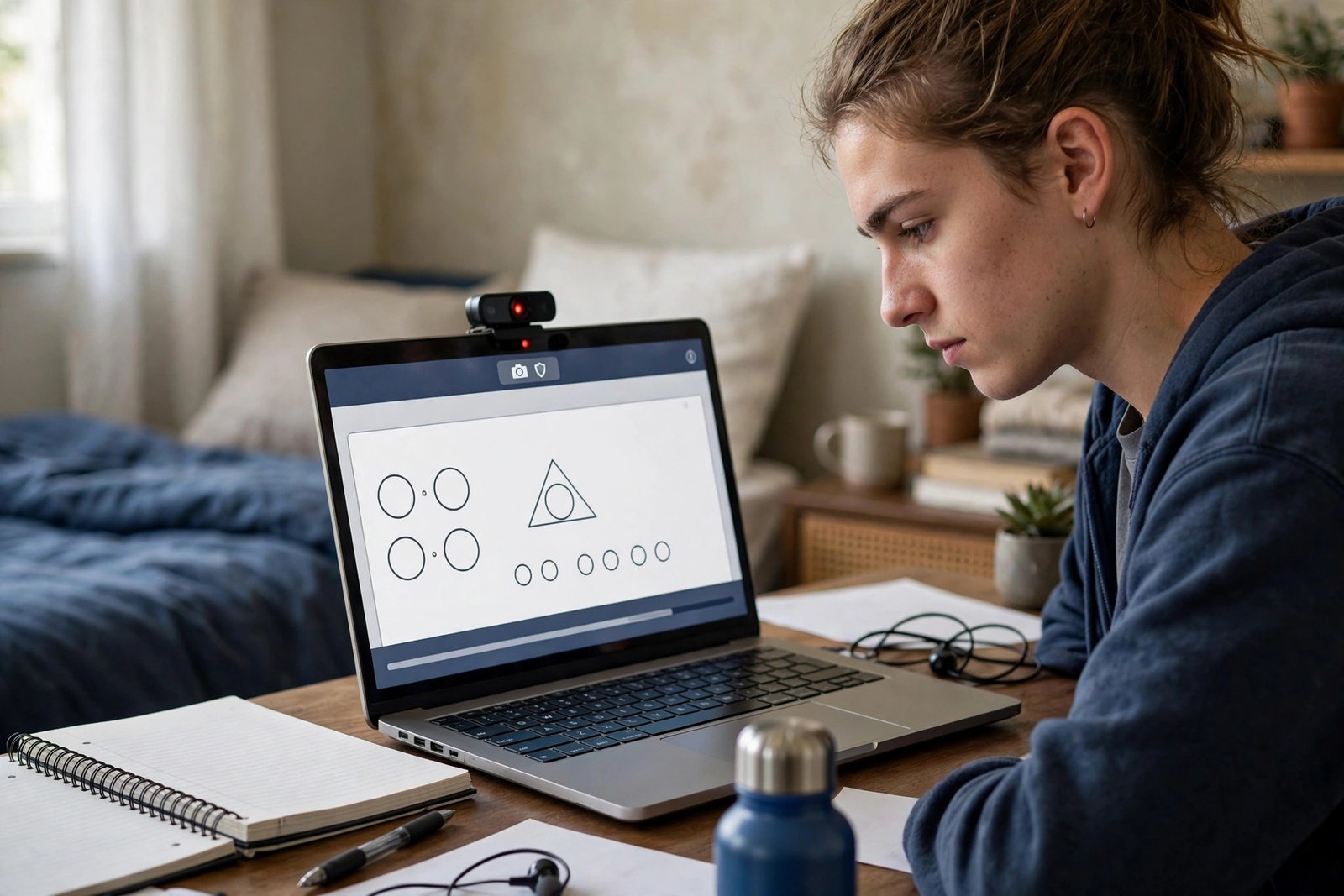
Is Respondus Monitor switched on for your exam? That one question decides almost everything about what the software will do, because the browser lockdown and the webcam recording are two separate layers. With Monitor off, the exam is a locked window and nothing more; with it on, a camera and microphone join the room. Sort out which version you face first, then read the section that matches.
Most students walk into a proctored test knowing only the name of the program, and that vagueness causes most of the panic on the day. A locked window feels very different from a recorded room, yet both carry the same label in a course page, so the first job is to find out which setup your teacher chose. Check the exam instructions in your learning platform, look for any mention of a webcam check, and ask your teacher directly when the instructions stay silent. That single clarification shapes every other choice, from where you sit to which apps you close, and it also shapes the advice in revising effectively for the SAT, which covers calm preparation in a different setting but rests on the same idea of sorting the format before you start.
The Short Answer: Monitor On or Off
LockDown Browser is a separate program that you install on your own machine, and it opens your exam inside a sealed window. Once that window opens, the rest of your machine stays out of reach until you hand the paper in. You cannot flip to a notes file, you cannot open a fresh tab, and you cannot paste text from elsewhere. The seal holds for the whole sitting, then lifts when you submit, and your machine returns to its usual state. Nothing about that arrangement watches you. It simply narrows what the machine can do while the paper runs.
Respondus Monitor adds a second layer on top of that seal. When a teacher switches it on, the exam begins with a camera and microphone check, and recording runs while you answer. A piece of automated software watches the recording for moments that look unusual, then marks those moments for a teacher to look at later. The marking is not a verdict, and learning how the marking works helps. A teacher still makes the judgement, and the recording exists so that judgement can rest on something concrete rather than on a bare suspicion. Knowing that distinction takes a lot of fear out of the process, because a flag is a bookmark, not a penalty.
Teachers choose between the two setups for different reasons. Some want only the sealed window, because their questions are open in style and the main worry is a quick search during the paper. Others want the recording as well, because the paper runs at home and they need some way to see the room. Neither choice says anything about trust in a particular class. It says something about the shape of the paper and the setting in which it runs. Your job is not to argue with the choice on the morning of the test. Your job is to learn which one applies and to prepare for that version alone.
What the Lockdown Actually Blocks
The sealed window blocks movement between programs. Switching with keyboard shortcuts does nothing while the seal holds. Right-click menus stay closed. Copy and paste stay frozen. Printing stays out of reach. Screen capture tools stay blocked. Those limits sound harsh in a list, yet they all serve one purpose, which is to keep the exam window as the only place where work happens. A student who understands that purpose stops fighting the limits and starts planning around them.
Running programs are part of the same picture. Messaging tools, video call tools, screen sharing tools, and remote desktop tools can all clash with the sealed window, and the safest course is to close them before you launch the exam. That advice covers tools that seem harmless, because a tool that holds the camera or the microphone can block the exam from starting even when you have no plan to use it. Close the lot, then launch, and you remove a whole class of launch failures in one move.
Virtual machines bring a harder stop. The program recognises a virtual environment and refuses to run inside one. That refusal is deliberate, because a virtual machine could hide activity outside the sealed window. If your usual setup runs through a virtual machine, switch to a normal install on the host machine for exam day. Trying to work around that refusal risks an academic integrity case, and the consequences of such a case reach far beyond one paper.
The Monitor Startup Sequence
When Monitor is switched on, the paper does not start at once. A startup routine runs first, and each step in that routine has a reason. The camera check makes sure your face is visible and lit well enough for the recording to mean something. The microphone check makes sure sound is being picked up, so that a later review can hear the room as well as see it. The identity check asks you to show a photo card to the camera, so the recording can be tied to the right student. The room check asks you to turn the camera around the space, so the reviewer can see that nobody else is sitting just out of frame.
Lighting deserves a word of its own, because it causes more startup trouble than any other single factor. A lamp behind you turns your face dark. A window behind you does the same. A lamp in front of you, aimed at your face from the side of the screen, gives a clear image without glare. You do not need studio equipment. A desk lamp moved to the front of the desk does the job, and a curtain drawn across a bright window behind you does the rest.
After the startup routine finishes, the recording runs without further prompts. You do not need to watch the camera or keep checking that it still records. Answer the paper in your usual way, keep your face toward the screen, and let the recording do its own work. Looking away to think is normal, stretching is normal, and a brief pause is normal. The review process expects ordinary human movement, and it is built to sort ordinary movement from real cause for concern.
Before the Exam: A Short Checklist
Preparation for this kind of paper splits into three groups, and each group takes only a few minutes when handled early. The first group is the install itself. Get the program from your institution link, not from a general search, because versions differ between schools and a generic download may not match your course. Install it days before the paper, not hours before, and open it once to confirm that it launches cleanly on your machine.
The third group is the room. Choose a private space with a door that closes, a chair that lets you sit upright, and a desk clear of papers that the rules do not allow. Tell others in the house when the paper starts and when it should finish, and ask for quiet during that stretch. Put your phone in another room, because reaching for it during a recorded paper is one of the most visible things you can do, and many teachers forbid phones outright during exams of this kind.
A practice run ties those three groups together. When your teacher offers a practice quiz inside the locked program, take it. It confirms the install, it confirms the camera and microphone, and it shows you the startup routine before the real paper depends on it. Students who skip the practice run often discover a small problem during the real startup, when the clock is already running and stress is already high.
During the Exam: What Gets Flagged
Flagging is the part of Monitor that students misunderstand most, so it deserves a plain explanation. Automated software watches the recording and marks moments that depart from a simple pattern, such as a face leaving the frame, a second face entering the frame, a long look away from the screen, or a sudden noise. Each mark is a timestamp with a short note, and a teacher reviews those marks after the paper. The teacher decides what each mark means, and most marks turn out to mean nothing at all.
What a teacher looks for is a pattern, not a single moment. Repeated glances in one direction, a long absence from the frame, a second person speaking off camera, or a phone appearing in view all carry more weight than a single glance away. Even then, the teacher usually asks the student what happened before drawing any conclusion. A calm, honest explanation of a real event, such as a delivery at the door or a child calling from another room, usually settles the matter.
Your best protection during the paper is a steady, simple routine. Keep your face toward the screen, keep both hands visible on the desk or keyboard, and keep the room quiet. When something unexpected happens, stay calm and keep working. Do not reach for the phone to explain the event, do not call out to someone off camera, and do not try to pause the recording. Finish the paper, note what happened while it is fresh in your mind, and raise it with your teacher afterward when asked.
After the Exam and Common Problems
Submitting ends the lockdown at once. The sealed window closes, the recording stops, and your machine returns to normal use. Check that the submission went through before you close anything, and look for the confirmation message that your learning platform shows after a successful hand-in. When that message appears, the exam is done, and no further action is needed from you unless your teacher contacts you about a flagged moment.
Launch failures are the most common problem, and they usually trace to an old version or a clashing program. Update the program, close messaging and screen sharing tools, restart the machine, and try again. A restart clears a surprising number of small conflicts, including a camera held by another app and a process left running after an earlier session. When the program still refuses to launch, the campus help desk is the right next step, and a screenshot of any error message helps them a great deal.
A flag on your recording, without any message from your teacher, needs no action at all. Flags are routine, teachers review them in their own time, and most flagged recordings pass without any contact. When a teacher does ask about a moment, answer plainly and briefly, describe what happened in ordinary words, and avoid guessing at what the software may have seen. Your own account of the moment is the useful evidence, and a short honest note beats a long defensive one.