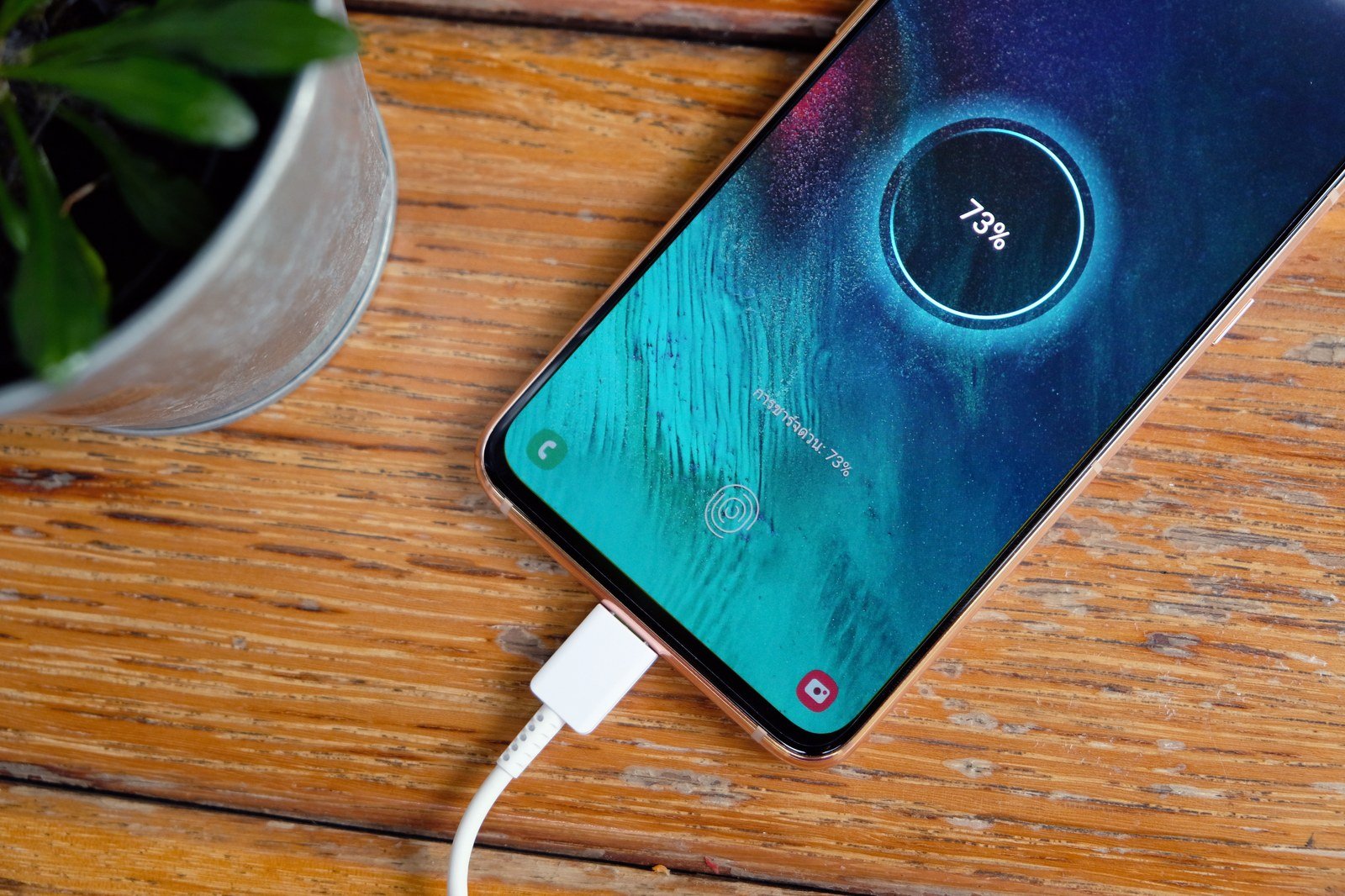
It’s 4 p.m., your phone is at 12%, and your charger is at home. We’ve all been there. And while bigger batteries and faster charging help, the truth is that most phones could last the whole day — they’re just bleeding power on things you don’t need.
Here’s how to make your phone last longer on a single charge, from the tweaks that save hours to the habits that add up.
The Big Three Battery Drains
On every modern smartphone, three things consume the vast majority of power:
- The screen — by far the biggest drain. Brightness, screen-on time, and refresh rate.
- The cellular/Wi-Fi radios — especially struggling for signal.
- Background app activity — apps doing things when you’re not looking.
Everything below targets one of these three. That’s why it works.
Screen Tweaks (Biggest Impact)
- Lower your brightness. The screen at 100% brightness uses roughly twice the power as at 50%. Auto-brightness is good; manually keeping it a notch lower is better. This single change can add 1–2 hours.
- Shorten screen timeout to 30 seconds. Every minute your screen idles at full brightness is wasted power.
- Use dark mode. On OLED screens (most modern phones), black pixels are literally turned off. Dark mode saves 20–40% of screen power in real use. (Curious about the tech? Here’s OLED vs. LCD explained.)
- Drop the refresh rate. That silky 120Hz display costs battery. Most phones let you switch to 60Hz in display settings — you lose some smoothness, gain meaningful hours. Try it for a week; most people stop noticing.
- Turn off always-on display if your phone has it. It’s a constant low-level drain for a clock you check twice a day.
Radio Tweaks (The Hidden Drain)
- Use Wi-Fi whenever possible. Wi-Fi uses significantly less power than cellular data — sometimes half. At home and work, stay on Wi-Fi.
- Weak signal is a battery killer. When your phone struggles to hold a signal (one bar, parking garages, rural areas), it cranks its radio power to maximum. In a known dead zone, airplane mode saves enormous power versus letting it hunt.
- Turn off 5G if the signal is weak. Hunting between 4G and 5G is expensive. If you’re mostly on Wi-Fi anyway, locking to 4G/LTE is a free win. (More on 5G vs. regular mobile data here.)
- Disable Bluetooth, NFC, and hotspot when not in use. Small drains individually; they add up.
Background App Tweaks
- Restrict background activity for apps that don’t need it: Settings → Apps → pick app → Battery → Restricted (Android) or Settings → General → Background App Refresh → off per app (iPhone). Social media, shopping, and games are the worst offenders.
- Change push email to fetch. Push keeps a constant connection open per account. Fetch every 30 minutes is indistinguishable in practice and much kinder to the battery.
- Tame location services. “Always” location permission means constant GPS polling. Downgrade to “While Using” everywhere you can — our guide on stopping apps from tracking your location walks through it.
- Turn off unnecessary notifications. Every buzz lights the screen, vibrates the motor, and wakes the processor. Audit ruthlessly.
Use the Built-In Battery Tools
Both platforms have power-saving modes that actually work:
- iPhone Low Power Mode: throttles background activity, mail fetch, and visual effects. Turn it on manually at 40% instead of waiting for 20% — it easily adds 2–3 hours.
- Android Battery Saver / Extreme Battery Saver: the standard mode is gentle; Extreme (Pixel) or Maximum (Samsung) mode can stretch a nearly-dead phone for many more hours by limiting apps drastically.
- Adaptive Battery (Android): learns your patterns and restricts apps you rarely use. Leave it on — it gets smarter over weeks.
- Check the battery usage screen monthly. If one app is consistently at the top and it’s not something you love, restrict or replace it. (Especially relevant after updates — see why batteries drain after software updates.)
Habits That Add Up
- Charge to 80%, not 100%, for daily use. Most phones now offer an 80% charge limit — use it. It dramatically slows battery degradation, meaning your battery stays big for years instead of shrinking.
- Don’t fear partial charges. The “full cycles only” advice is a myth from the nickel-battery era. Lithium-ion prefers frequent top-ups.
- Keep it cool. Heat degrades batteries faster than anything. Don’t charge under a pillow; don’t leave it on a sunny dashboard.
- Carry a small power bank. A $20 10,000mAh bank is 2–3 full charges in your bag. Sometimes the practical answer beats the optimization game.
Frequently Asked Questions
Does charging overnight damage the battery?
With modern phones: barely. Optimized charging features (iPhone’s Optimized Battery Charging, Android’s Adaptive Charging) learn your wake time and hold the battery at 80% until just before your alarm. The real enemy isn’t overnight charging — it’s heat while charging (don’t charge under a pillow) and sitting at 100% for weeks unused. For daily use, charge overnight without guilt; enable the optimized charging feature and forget about it.
Is fast charging bad for battery health?
Slightly, but less than you’d think. Fast charging generates more heat, and heat degrades batteries — but modern phones manage this with stepped charging (fast to 50–80%, then slow). The convenience overwhelmingly justifies the minor extra wear for most people. If you want to maximize lifespan: use fast charging when you need speed, slow charging overnight. Don’t stress about it — the difference is a few percent of capacity over two years.
Should I let my phone die completely before charging?
No — that’s a myth from the nickel-battery era that refuses to die. Lithium-ion batteries prefer partial charges and are stressed by deep discharges. The ideal pattern: top up frequently, keep it roughly between 20% and 80% when convenient, and don’t sweat the occasional full charge or low dip. The battery doesn’t have “memory” — it has chemistry, and the chemistry likes moderation.
Why does my phone lose charge overnight while I’m not using it?
A few percent is normal (radios, background sync, the clock has to run). More than 5–8% overnight indicates a problem: an app stuck in a background loop, poor cellular signal (the phone burns power hunting for towers all night — airplane mode or Wi-Fi calling fixes this), or a failing battery. Check the battery usage screen first thing in the morning — the culprit is usually right there at the top.
The Bottom Line
The 80/20 of phone battery life: lower brightness + dark mode, stay on Wi-Fi, restrict background apps, turn on battery saver early, and charge to 80%. Those five changes can easily add 3–4 hours to a typical day — the difference between the 4 p.m. panic and coasting to bedtime. And if your battery is genuinely worn out (under 80% health), no setting fixes chemistry — get it replaced and start fresh.