Your data plan is half gone and it’s only the 12th. You haven’t been streaming movies on cellular — or have you? A few apps quietly burning data in the background can eat through gigabytes without you ever opening them. Finding the culprits takes two minutes once you know where to look.
Here’s how to find out which apps are using the most data — and what to do about the hogs.
Check Your Data Usage (iPhone)
- Go to Settings → Cellular (or Mobile Data).
- Scroll down — you’ll see every app listed with its cellular data usage for the current period.
- Important: check when the period started (scroll to the bottom → “Last Reset”). If nobody’s reset it in two years, the numbers are lifetime totals and useless for diagnosis. Tap Reset Statistics on the first day of your billing cycle to get meaningful monthly numbers.
Check Your Data Usage (Android)
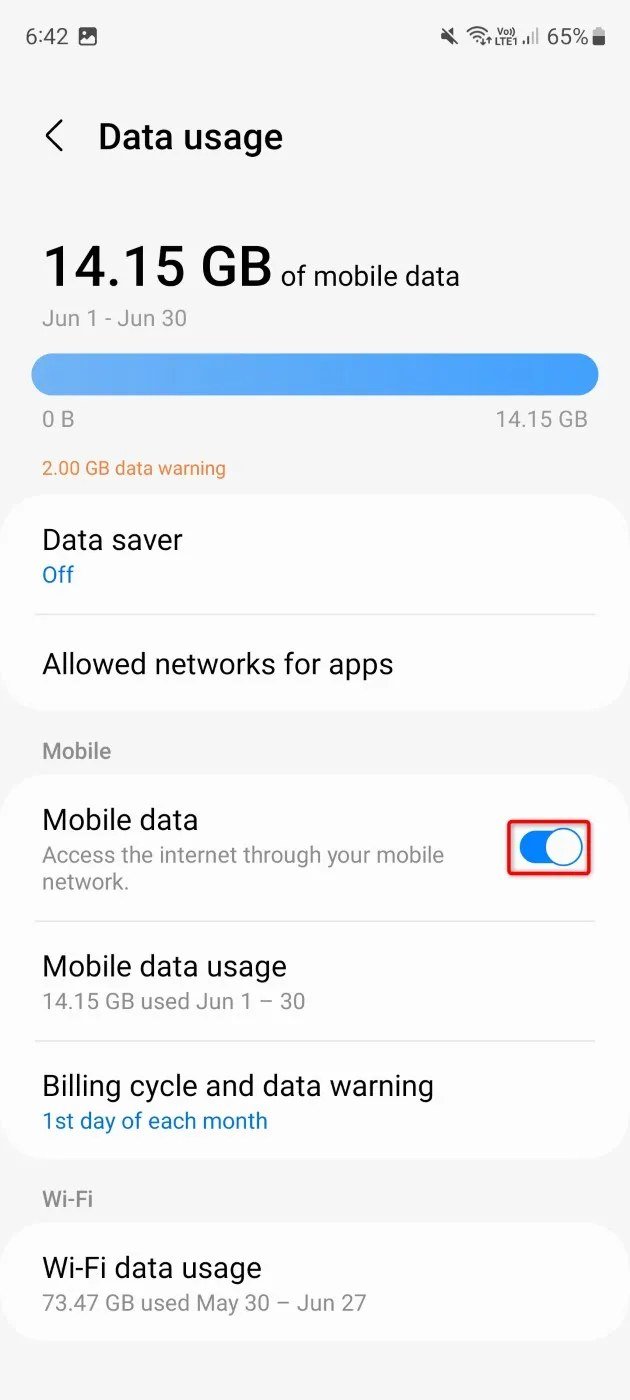
- Go to Settings → Network & Internet → Data usage (or Settings → Connections → Data usage on Samsung).
- Tap Mobile data usage — you’ll see a ranked list by app, with a date range selector at the top.
- Android lets you pick the billing cycle dates, so set them to match your plan — much more useful than iPhone’s manual reset.
- Tap any app to see its foreground vs. background split — this is the key insight (more below).
The Usual Suspects
In my experience helping people with this, it’s almost always one of these:
- Video apps on autoplay: TikTok, Instagram Reels, YouTube — an hour of scrolling can burn 1–2GB. The apps are designed to preload the next video.
- Cloud backup/sync running on cellular: Google Photos, iCloud, Dropbox uploading full-resolution photos and videos over mobile data. One afternoon of shooting 4K video = gigabytes uploaded.
- Podcast/music apps auto-downloading: set to Wi-Fi only (see below).
- App updates over cellular: a single app update can be 500MB+.
- Hotspot/tethering: if you share your connection, the connected device’s usage counts against you — check what’s connected.
- Software updates: OS updates are multi-gigabyte. Never let these run on cellular.
Tame the Hogs (Without Giving Anything Up)
- Restrict background data per app: Android — tap the app in data usage → toggle off “Background data.” iPhone — Settings → General → Background App Refresh → off per app. The app works fine when open; it just can’t phone home behind your back. (This also helps battery life — background data and background battery drain are the same problem.)
- Set media apps to Wi-Fi only: in Spotify, Apple Podcasts, Google Photos, Netflix — find “download/streaming quality” and “Wi-Fi only” toggles. Also lower streaming quality on cellular (YouTube: 480p on mobile data is fine on a phone screen).
- Turn off cellular for specific apps (iPhone): Settings → Cellular → toggle off cellular data per app. Great for apps that have no business using mobile data at all.
- Enable Data Saver (Android): Settings → Network → Data Saver — restricts background data system-wide with per-app exceptions.
- Use Low Data Mode (iPhone): Settings → Cellular → Cellular Data Options → Low Data Mode. Pauses automatic updates and background tasks on cellular.
- Download before you go: offline maps, playlists, podcast episodes, Netflix shows — download on Wi-Fi and your cellular usage plummets.
Set Up Alerts So It Never Surprises You Again
- Android: Settings → Data usage → set a data warning (e.g., 80% of your plan) and a data limit (hard cutoff). Your carrier’s app usually offers usage alerts too — enable them.
- iPhone: no built-in warning (annoying), so use your carrier’s app — Verizon, AT&T, and T-Mobile all have usage alerts and widgets.
- Check monthly for 3 months. After taming the hogs, verify the numbers actually dropped. If one app is still eating data with background restricted, consider replacing the app — some are just badly behaved.
When the Numbers Don’t Add Up
If your phone shows low usage but your carrier says you’re over: check for another device on your plan (kids’ tablets, old phones with active SIMs), hotspot usage you forgot about, or carrier measurement differences (carriers round up and count differently). Also, a phone stuck in a constant location-tracking loop can burn surprising data uploading position fixes.
Frequently Asked Questions
Why does my carrier say I used more data than my phone shows?
Carriers and phones measure differently: carriers round up per session, count tethering/hotspot separately, and include some system traffic your phone’s per-app breakdown misses. Small discrepancies (5–10%) are normal. Large ones point to something real: another device on your plan (an old phone with an active SIM, a kid’s tablet), forgotten hotspot usage, or a device backing up over cellular. Check every line on a family plan — the culprit is often not your phone.
Does streaming music use a lot of data?
Less than you’d think: about 40–70MB per hour at normal quality, ~150MB per hour at maximum quality. A daily hour-long commute is roughly 1–2GB/month — noticeable but not plan-breaking. The real data killers are video (1–3GB per hour) and auto-downloaded podcasts set to highest quality. If music is your main concern, download playlists on Wi-Fi and the cellular cost drops to zero.
Should I just get an unlimited plan instead of managing usage?
Do the math first: compare your actual average usage against plan prices. If you consistently use 8GB on a 5GB plan and overage fees run $15/GB, unlimited (usually $60–$90/month) may be cheaper. But “unlimited” has fine print — deprioritization thresholds (typically 50GB) after which speeds drop during congestion, and hotspot caps. For many people, a right-sized capped plan plus Wi-Fi discipline is cheaper than unlimited. Don’t buy unlimited out of anxiety; buy it from arithmetic.
Can apps use data when my phone is in airplane mode?
No — airplane mode disables all radios (cellular, Wi-Fi, Bluetooth), so nothing can transmit. It’s the ultimate data (and battery, and tracking) kill switch. The useful middle ground: airplane mode with Wi-Fi manually re-enabled — you get internet without cellular data usage or carrier location tracking. Frequent travelers use this constantly; it’s also great for kids’ devices on trips.
The Bottom Line
Reset your statistics (iPhone) or set your billing cycle (Android), find the top 3 data hogs, restrict their background data, and set media apps to Wi-Fi only. That 10-minute session typically cuts cellular usage 30–60% with zero lifestyle change. Add data warnings so you’re never surprised on the 12th again.