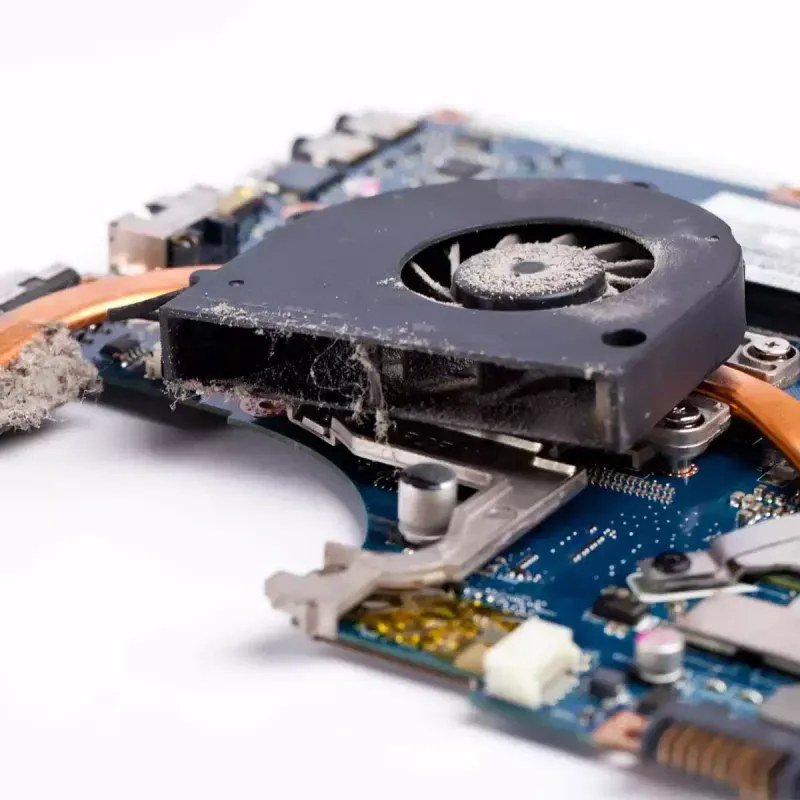
Your laptop is hot enough to be uncomfortable on your lap, the fan sounds like it’s preparing for takeoff, and everything feels sluggish. Before you assume it’s dying, know this: an overheating laptop is usually a maintenance problem, not a death sentence. And the heat isn’t just uncomfortable — it’s actively making your laptop slower.
Here’s why it happens and how to fix it, from the 30-second fixes to the deeper repairs.
Why Laptop Heat Makes Everything Worse
Quick physics lesson that explains everything: when your CPU or GPU gets too hot (typically above 90–95°C), it thermal throttles — deliberately slowing itself down to avoid damage. So your hot laptop isn’t just hot; it’s running at half speed because it’s hot. Fix the heat, and the “slowness” often vanishes too.
Heat also degrades your battery faster, and sustained high temperatures shorten component lifespan. It’s worth fixing even if the slowness doesn’t bother you.
The Usual Suspects (In Order of Likelihood)
1. Blocked Vents and Dust Buildup
The #1 cause, especially in laptops 2+ years old. Dust mats form over the heatsink fins and fan intakes, slowly strangling airflow. Pet hair makes it worse; carpeted homes make it worse; using the laptop on a bed makes it dramatically worse.
Fix: with the laptop off and unplugged, blow compressed air through the vents in short bursts (long blasts can overspin and damage fans — use quick pulses). Blow into the exhaust vents too, to dislodge the dust mat from the inside. Do this outside; you’ll be horrified by what comes out.
2. Bad Surface Habits
Laptops breathe from underneath. On a bed, couch, or your lap, the intake vents get smothered and the machine cooks itself. This alone can add 15–20°C.
Fix: hard, flat surfaces always. A $15–$25 cooling pad with fans genuinely helps — expect 5–10°C drops. Even propping the back edge up on a book improves airflow measurably. It looks silly. It works.
3. Runaway Software
One rogue process can pin your CPU at 100% indefinitely. Check:
- Windows: Task Manager → sort by CPU. Anything stuck at high usage that shouldn’t be? End it, then investigate.
- Mac: Activity Monitor → CPU tab. Same deal.
Common culprits: Chrome with 40 tabs, antivirus scans, cloud sync tools re-indexing, Windows Update running in the background, and — the sneaky one — cryptojacking malware using your CPU to mine cryptocurrency. If CPU usage is high and you can’t explain it, run a malware scan; our guide to signs your computer has a virus covers what to look for.
4. Dried-Out Thermal Paste
Between your CPU and its heatsink is a layer of thermal paste that transfers heat. After 3–5 years it dries out and cracks, and temperatures climb 10–20°C. This is the classic “my old laptop suddenly runs hot” cause.
Fix: repasting requires opening the laptop, removing the heatsink, cleaning off old paste with isopropyl alcohol, and applying new paste ($8 for a tube of Arctic MX-4). It’s a 45-minute job with a YouTube guide for your specific model. Intermediate difficulty — if you’ve never opened a laptop, watch the video twice before starting, keep track of screws, and be gentle with ribbon cables.
5. Old or Failing Fan
If the fan rattles, grinds, or doesn’t spin at all, it’s dying. Replacement fans run $15–$40 on eBay/Amazon for most models and are usually a 20-minute swap. A laptop with a dead fan will overheat in minutes — don’t use it until fixed.
Software Tweaks That Help Right Now
- Switch to a balanced/battery power plan instead of “Best performance” or “High performance” — the top performance mode keeps clocks high and generates constant heat
- Cap max processor state (Windows: Power Options → Processor power management → set maximum to 95–99% — this disables turbo boost, cutting heat dramatically with minimal performance loss)
- Close what you’re not using. Every background app generates heat. Be ruthless.
- Update drivers and BIOS. Manufacturers sometimes fix fan-curve bugs in updates.
- Undervolting (Intel Throttlestop / AMD Ryzen Controller): reduces the voltage the CPU uses, cutting heat 5–15°C with zero performance loss. Advanced but very effective — there are great guides for specific models.
Know Your Numbers
Install HWMonitor (Windows) or Macs Fan Control (Mac) to see actual temperatures:
- 40–60°C: idle/light use — normal
- 60–80°C: gaming/heavy work — normal
- 80–90°C: heavy sustained load — warm but okay
- 90°C+ sustained: throttling zone — fix something
- 100°C+: emergency shutdown territory — stop and fix immediately
When Heat Means It’s Time to Move On
If you’ve cleaned it, repasted it, and it’s still hitting 95°C doing nothing — or if the heat comes with random shutdowns, a swollen battery (trackpad popping up, case separating — stop using it immediately, swollen batteries are a fire risk), or a repair quote over $200 — it’s time. A hot laptop that’s also slow might just need the treatment in our guide to speeding up an old laptop, but hardware failure is hardware failure.
Frequently Asked Questions
Is it normal for a laptop to get hot during gaming or video editing?
Completely. Gaming, video rendering, and 3D work push the CPU and GPU to their limits — 80–90°C under sustained heavy load is normal and expected. What’s not normal: those temperatures during web browsing or idling, sudden shutdowns, or heat that’s dramatically worse than when the laptop was new. Judge by the workload: hot during gaming is physics; hot during email is a problem.
Can overheating permanently damage my laptop?
Modern laptops protect themselves — thermal throttling slows things down, and emergency shutdown kicks in before truly dangerous temperatures. So catastrophic damage from heat alone is rare. But chronic high heat does accelerate wear: batteries degrade faster, thermal paste dries out sooner, and solder joints suffer thermal cycling stress over years. Heat won’t kill your laptop tomorrow, but it shortens its life by months or years. Worth addressing, not worth panicking over.
Are cooling pads actually effective or just placebo?
Genuinely effective, within limits. A decent cooling pad with fans typically drops temperatures 5–10°C — meaningful, though not transformative. The biggest benefit often isn’t the fans but the elevation: simply raising the laptop’s back edge improves airflow significantly. A $15 pad is worth it for a hot-running laptop; a $60 “gaming” pad with RGB lighting is paying for theater. Even a couple of bottle caps under the back edge helps in a pinch.
Why does my laptop get hot even when I’m not doing anything?
Because something is doing something — you just can’t see it. Check Task Manager/Activity Monitor sorted by CPU: common silent culprits include Windows Update, antivirus scans, cloud storage re-indexing, browser tabs with auto-playing content, and (worst case) cryptojacking malware. A truly idle laptop should sit at 40–55°C. If yours idles at 75°C+, there’s a runaway process with your name on it.
The Bottom Line
Blow out the dust, get it off the bed and onto a hard surface, check for runaway processes, and consider fresh thermal paste if it’s 3+ years old — those four steps fix the vast majority of overheating laptops. Monitor your temps so you know what’s normal for your machine. Heat is the enemy of both speed and lifespan; a cool laptop is a fast, long-lived laptop.