“Storage Almost Full.” Four words that ruin your day. You go to look at what’s eating the space, you delete a few apps, and somehow you’re still out of room. And deleting photos? Absolutely not — those are your kid’s first steps, that sunset in the Keys, your grandmother’s birthday.
Good news: photos are rarely the real problem, and you can free up gigabytes without touching a single memory. Here’s how.
First: See What’s Actually Eating Your Storage
Before deleting anything, look at the breakdown. Most people are shocked by what they find.
- iPhone: Settings → General → iPhone Storage. Wait for the bar to load — it color-codes everything.
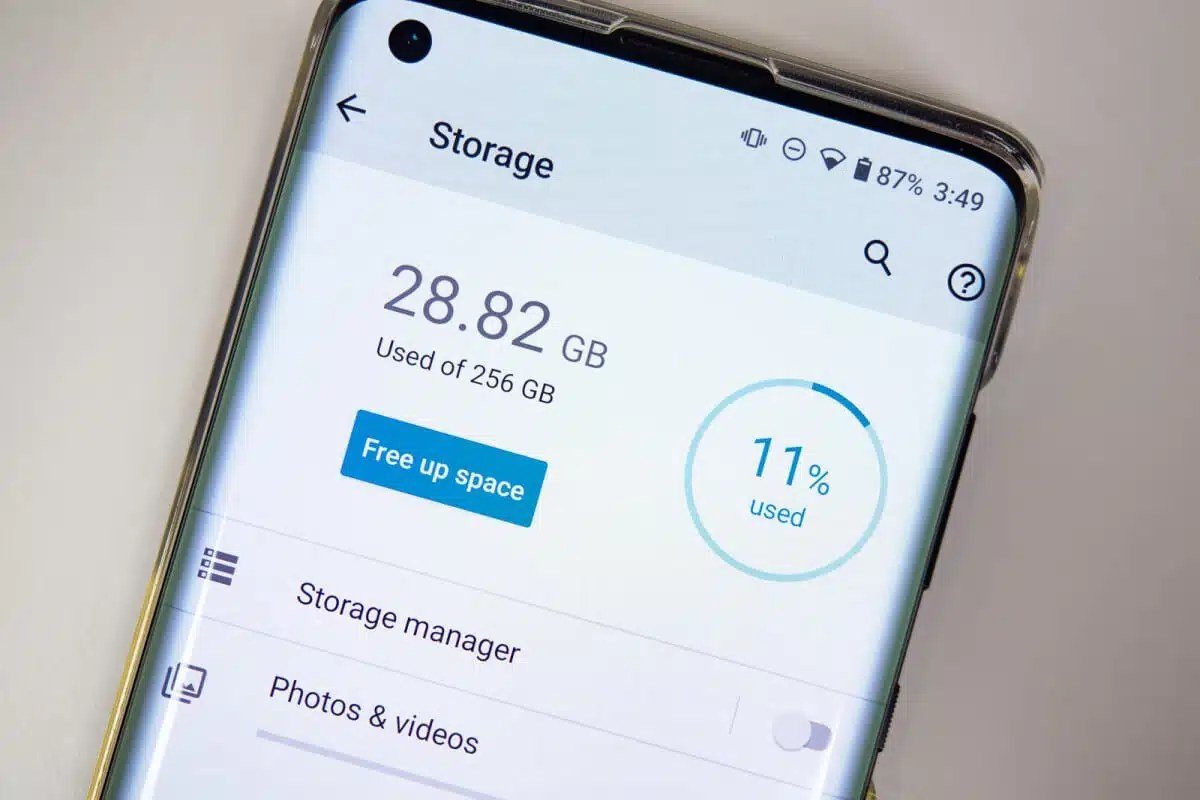
- Android: Settings → Storage. Tap through the categories.
Nine times out of ten, the biggest hogs aren’t photos. They’re cached data from streaming apps, old downloaded podcasts, WhatsApp media, and — the sneakiest one — the “System” or “Other” category that’s ballooned over time. Photos are usually third or fourth on the list.
Clear App Caches (The Biggest Free Win)
Apps like Instagram, TikTok, Spotify, and Reddit quietly stockpile cached files. I’ve seen TikTok alone holding 4GB of cache on a friend’s phone.
- Android: Settings → Apps → pick the app → Storage → Clear Cache. (Don’t hit “Clear Data” — that logs you out and wipes settings.)
- iPhone: Apple doesn’t offer a cache button, which is annoying. Your options: offload the app (Settings → General → iPhone Storage → tap the app → Offload App — this removes the app but keeps your data), or delete and reinstall the worst offenders.
Do this for your top five apps by size and you’ll commonly recover 3–8GB. It takes ten minutes.
Offload, Don’t Delete
iPhone users: turn on “Offload Unused Apps” (Settings → App Store). Your phone automatically removes apps you haven’t opened in a while but keeps all their data — so when you tap the icon again, it redownloads in seconds and everything is exactly where you left it. This alone can free up several gigabytes on autopilot.
Android users: use “Free up space” in the Files app or Google Photos, which suggests large files, blurry photos, and old downloads. It never touches your good photos without asking.
Tame Your Downloads and Messages
These are the silent storage killers nobody checks:
- Downloads folder: years of PDFs, memes, and attachments. Sort by size, keep what matters, trash the rest.
- WhatsApp / Telegram media: family group chats are storage black holes. In WhatsApp: Settings → Storage and Data → Manage Storage. You’ll probably find gigabytes of forwarded videos you’ve watched once. Review by chat, keep the keepers.
- Podcasts and music downloads: check for episodes downloaded two years ago. Spotify and Apple Podcasts both have settings to auto-remove played episodes — turn that on.
- Old voicemails: visual voicemail stores audio files. Delete the ancient ones.
Use the Cloud as an Overflow Valve (Without Losing Anything)
You don’t have to delete photos to get them off your phone’s local storage. The trick is optimized storage:
- iPhone: Settings → Photos → Optimize iPhone Storage. Full-resolution originals go to iCloud; your phone keeps lightweight versions. You see every photo exactly as before — they just download on demand.
- Android / Google Photos: back up, then use “Free up space” — it removes local copies of photos already safely backed up. Your memories stay in the cloud, your phone breathes again.
This is the single most effective move for photo-heavy phones. If you haven’t set up a backup yet, read our guide on the safest way to back up your phone photos to the cloud first — do the backup before you free up space, not after.
Deal With the Mysterious “System Data” / “Other” Blob
That gray “System Data” chunk that keeps growing? It’s logs, caches, Siri voices, and update files. A few things help:
- Update to the latest OS — updates often clean up stale system files.
- Restart your phone (yes, really — it clears temporary caches).
- On iPhone, if System Data is over 15–20GB, back up and restore via computer. It’s the only reliable way to shrink it.
Also check your which apps are using the most data — heavy data users are often heavy storage users too.
Frequently Asked Questions
Will offloading apps delete my data?
No — that’s the whole point of offloading versus deleting. On iPhone, offloading removes the app itself but preserves all its data and documents. When you tap the grayed-out icon later, it redownloads and everything is exactly where you left it — logged in, files intact. It’s the safest space-saving feature on the phone, and there’s no reason not to leave “Offload Unused Apps” turned on permanently.
Why is “System Data” so large, and is it safe to delete?
System Data is a grab-bag of caches, logs, Siri voices, and temporary files — you can’t delete it directly, and you shouldn’t try to manually. The safe ways to shrink it: restart your phone (clears temp caches), update iOS (purges stale files), or offload and reinstall your largest apps (resets their hidden caches). If it’s over 20GB and nothing helps, a computer backup-and-restore is the definitive fix.
Do I really need to keep all my photos in full resolution on my phone?
No — and that’s the key insight behind optimized storage. With iCloud or Google Photos backup enabled, your phone keeps lightweight previews while full originals live in the cloud. You see every photo, you can zoom and share normally, and full resolution downloads on demand in seconds. The only time you need local originals is when editing heavily or traveling without internet — and even then, you can download originals temporarily.
My storage filled up again a month after cleaning. What gives?
Something is re-filling it on autopilot — usually podcast auto-downloads, Spotify offline content, WhatsApp media auto-saving, or photo bursts. After your cleanup, go into each media app’s settings and set downloads to Wi-Fi only, enable auto-delete of played episodes, and turn off auto-save for WhatsApp media. Storage management isn’t a one-time cleanup; it’s fixing the defaults that caused the problem.
The Bottom Line
Work in this order: check the breakdown, clear the big app caches, offload unused apps, purge WhatsApp media and old downloads, then switch photos to optimized storage. Most people recover 10–20GB without deleting a single photo. And going forward, turn on the auto-cleanup settings mentioned above — future you will never see that “Storage Almost Full” warning again.